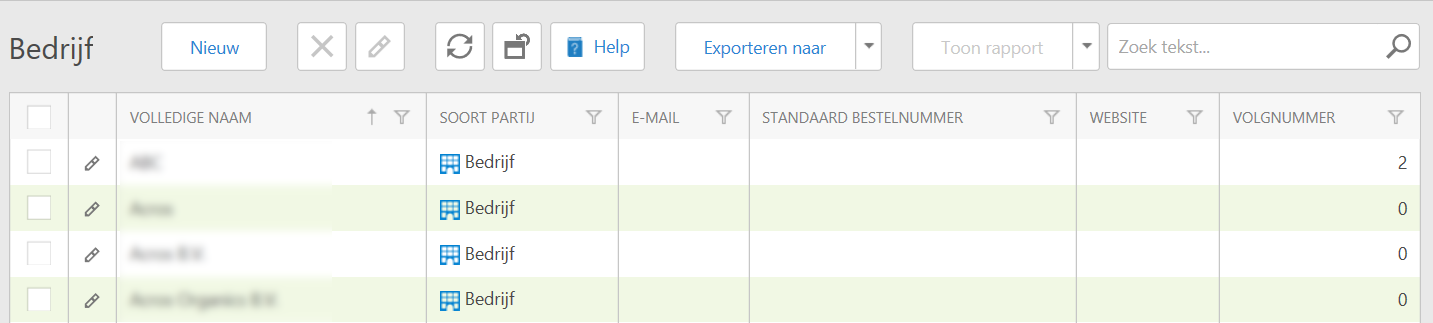
Go to Settings > Own organization > Other companies > Company.
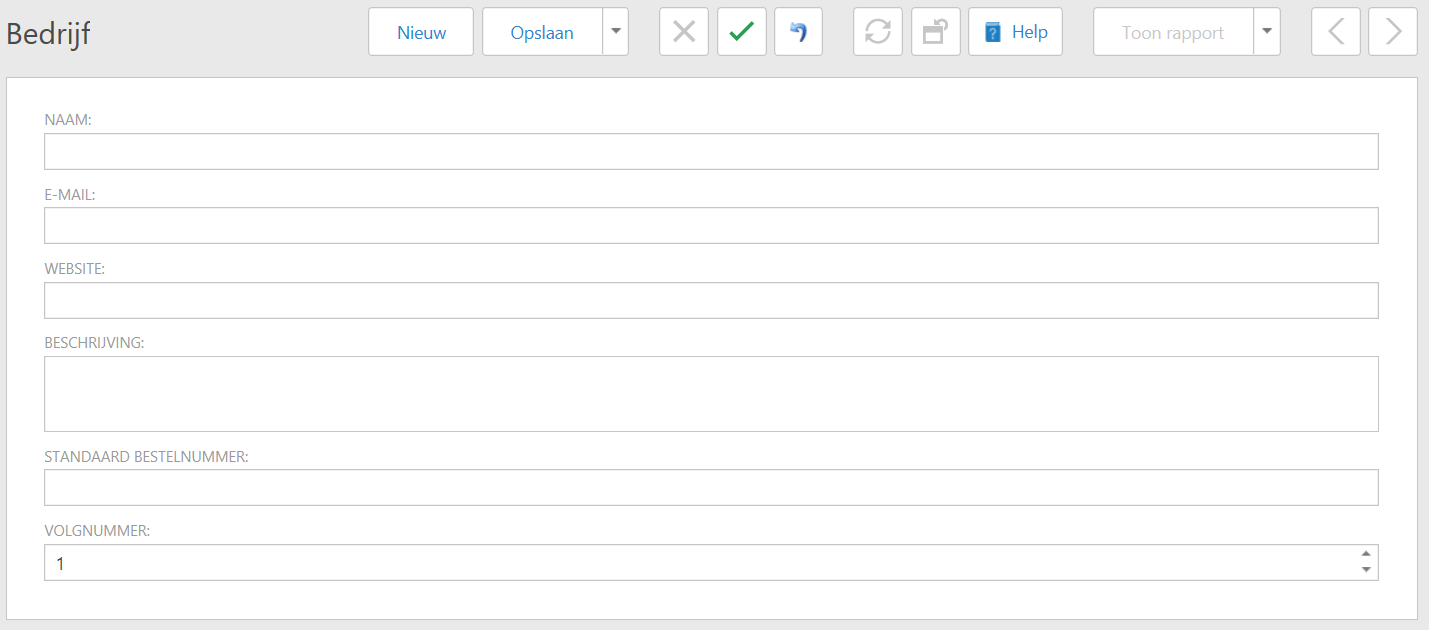
Click on 'New'.Another window opens.
Enter the information of the company here and scroll down.
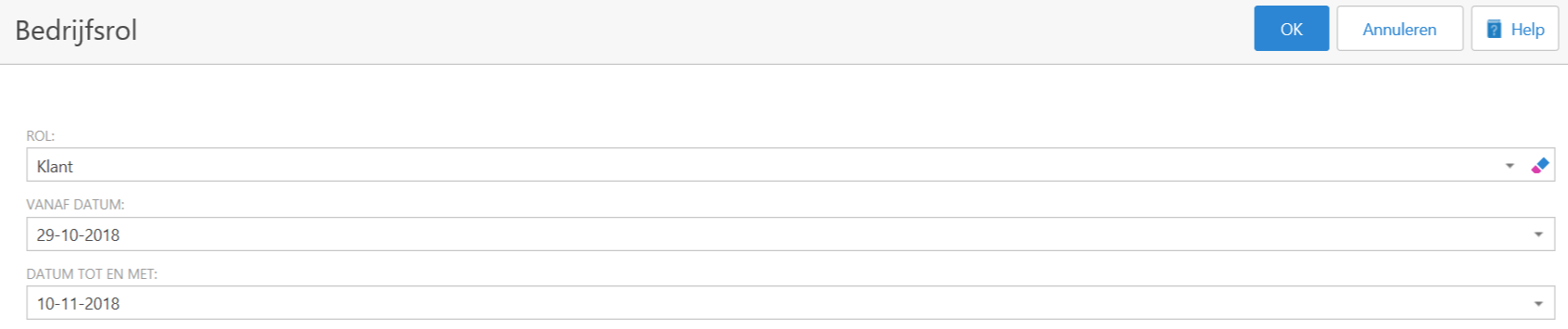
Click 'New' to add a business role. A new window will open.
Enter the details for this company and confirm with OK.
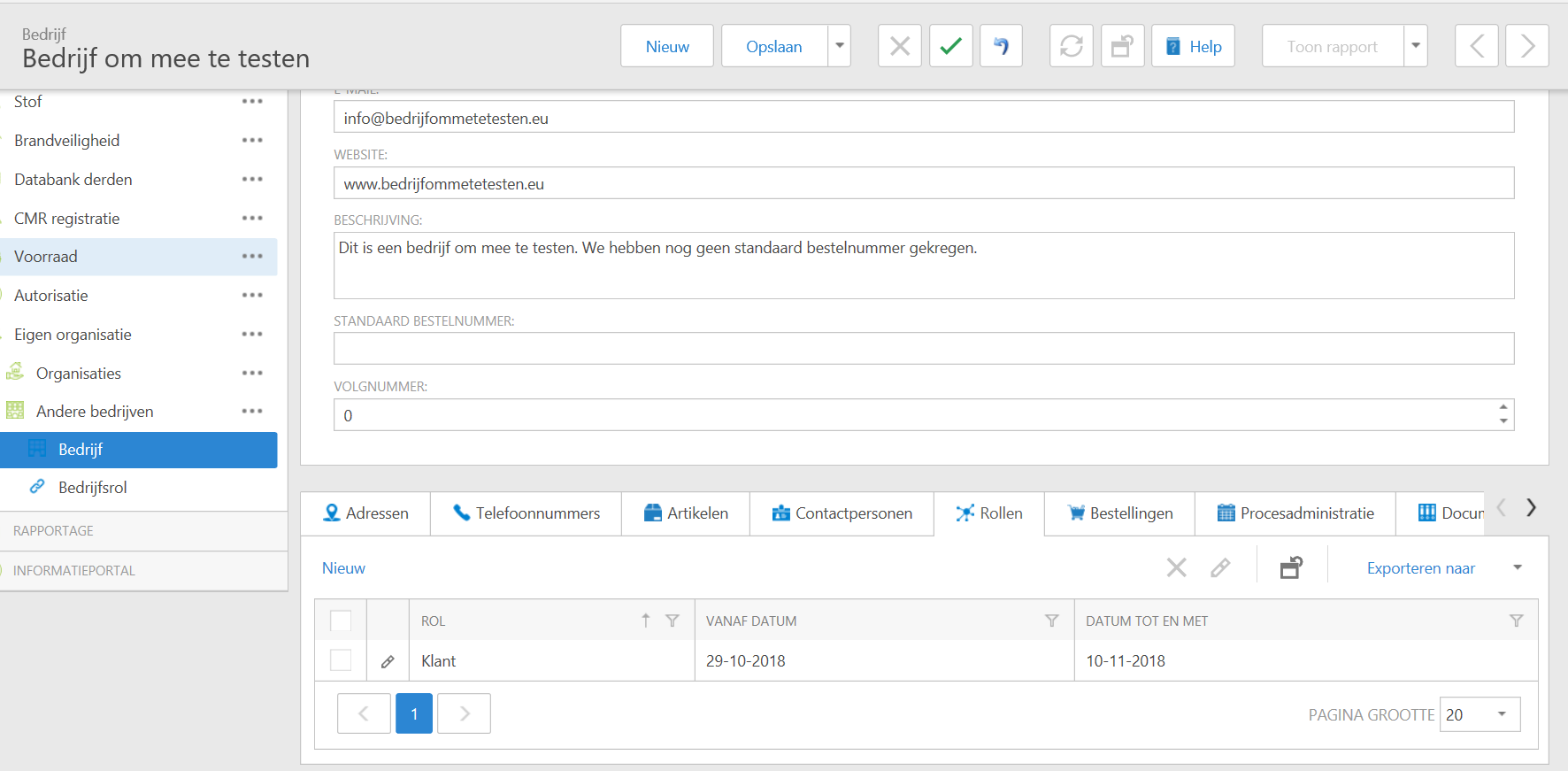
You will return to the main screen. At the bottom you can see that the desired role has been added with the 'From' and 'To date' that you have specified.
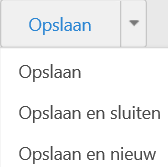
BConfirm your entry with 'Save'. You stay in the same screen. With the arrow () In addition to saving you can choose:
Save and close: you will return to the main screen.
Save and new: you get an empty input screen where you can add a new company.
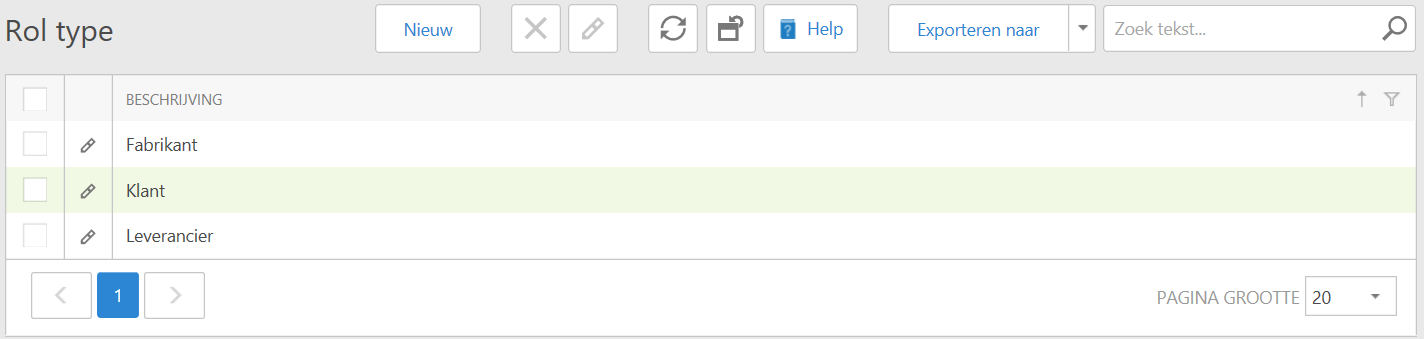
Go to Settings > Own organization > Other companies > Business role.
Go to the > Own organization> Other companies > Company role.
To add a new business role, click 'New'.
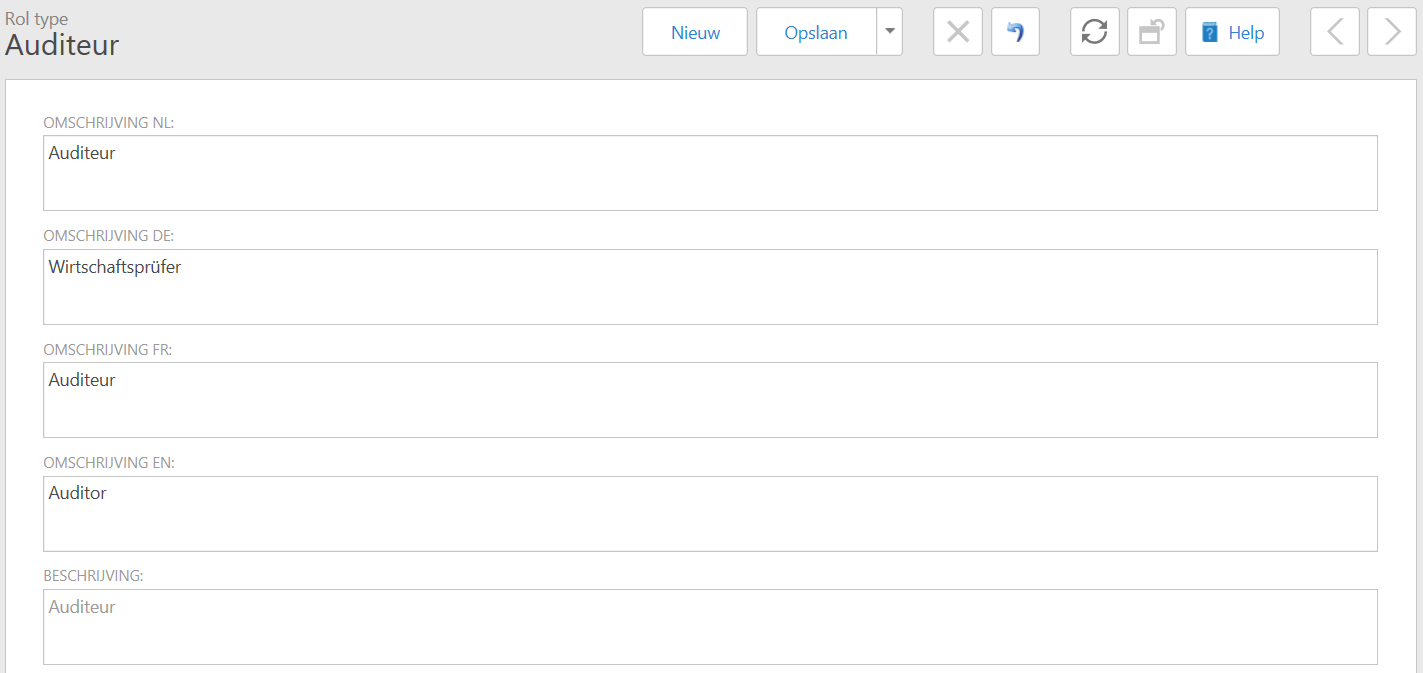
Enter the new role (at least in Dutch, the other languages are optional) and confirm with 'Save'. The description at the bottom of the page will then be filled in automatically.
Here you can use also the arrow () choose next to save for:
Save and close: you will return to the main screen.
Save and new: you get an empty input screen where you can add a new company.