
SOFOS 360
Business units
In the Own organization -> Organizations -> Organization [chapter 1] module, you can enter your organization details. In the "Business Unit" tab, for example, you can create branches or departments. You can also edit or delete it.
Add a new business unit
To add a new business unit, click on the Edit-icon in the main window. If necessary, go to the 'Business units' tab. Then click on the text [New]. A new window opens.
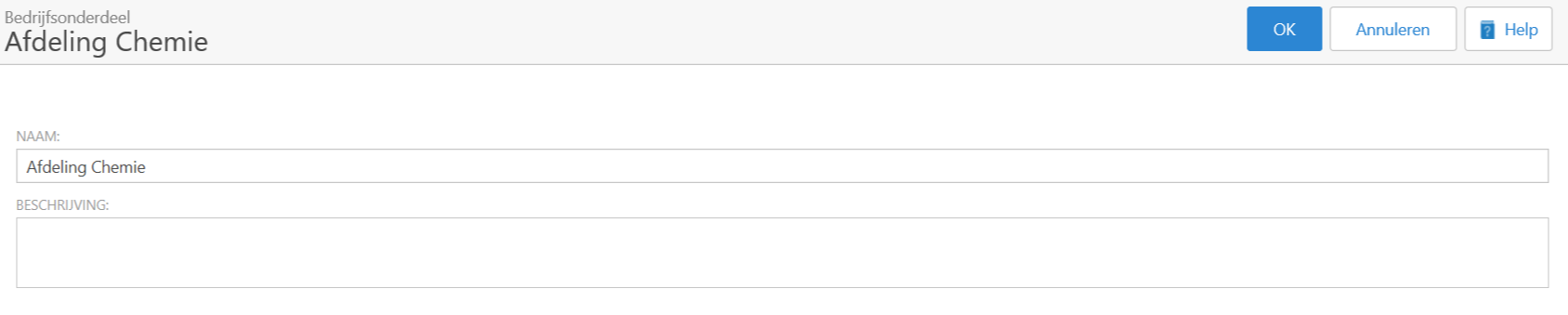
You provide the name and where appropriate a description of the business unit and confirm your entry with OK. The window closes and you see the business unit return in the list.
Linking a department to a business unit
You can create new departments to connect to a business unit. To do this, click on the Edit-icon for the newly created business unit in the 'Business units' tab. Make sure you are in the Departments tab. Click on [New]. A new window opens
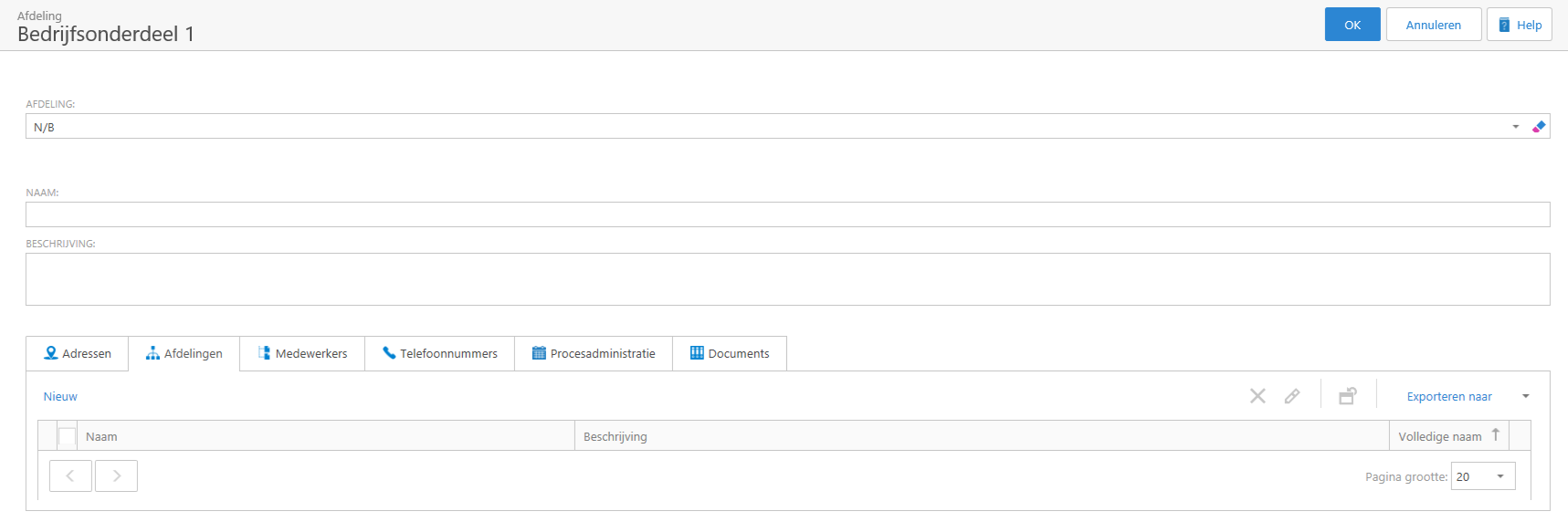
The field at 'Department' is a drop-down window. Click on the arrow on the right, you will get an overview of the departments that have already been created. Select the department to which you want to link the new department, enter the name of the newly created part and click OK.
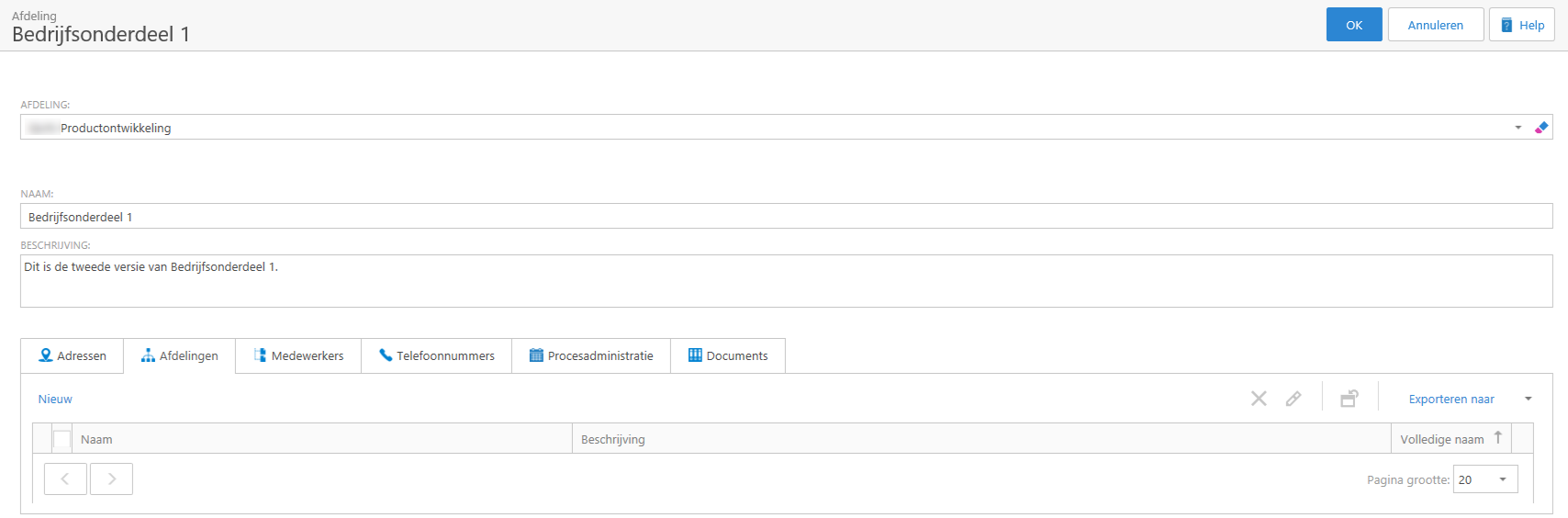
You will return to the main screen. Now click Save at the top right of the screen.
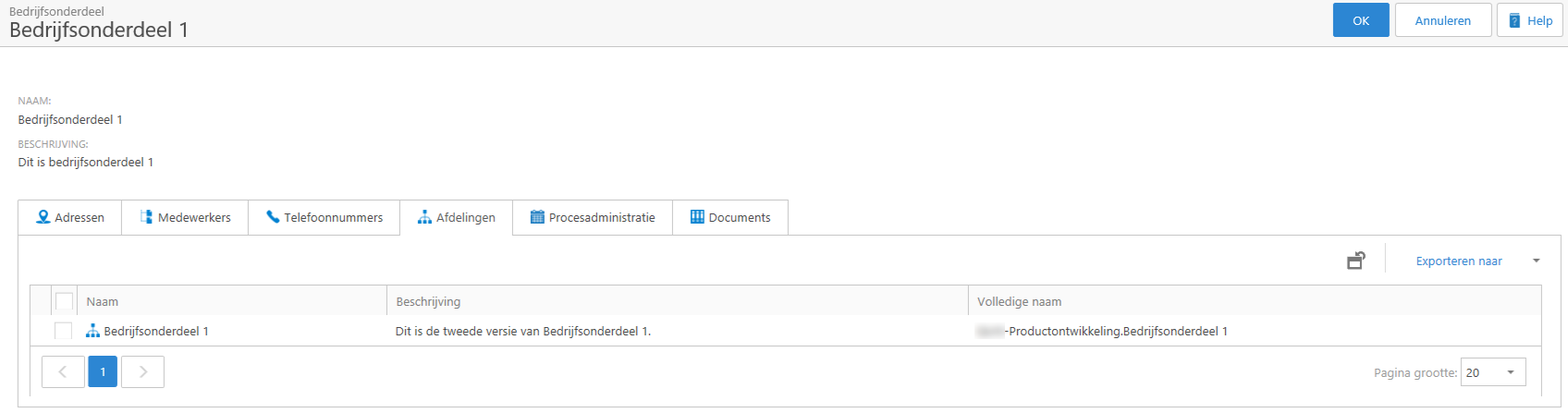
If you click on the newly created part, the detail screen will open. Note that the parent department has now been added to the full name; the newly created business unit is now linked.
Delete a business unit
You can do this by clicking on a record in the grid with the Edit-icon or by Selecting a record. If the Delete-icon turns red, you can click on it. The selected record is now deleted.
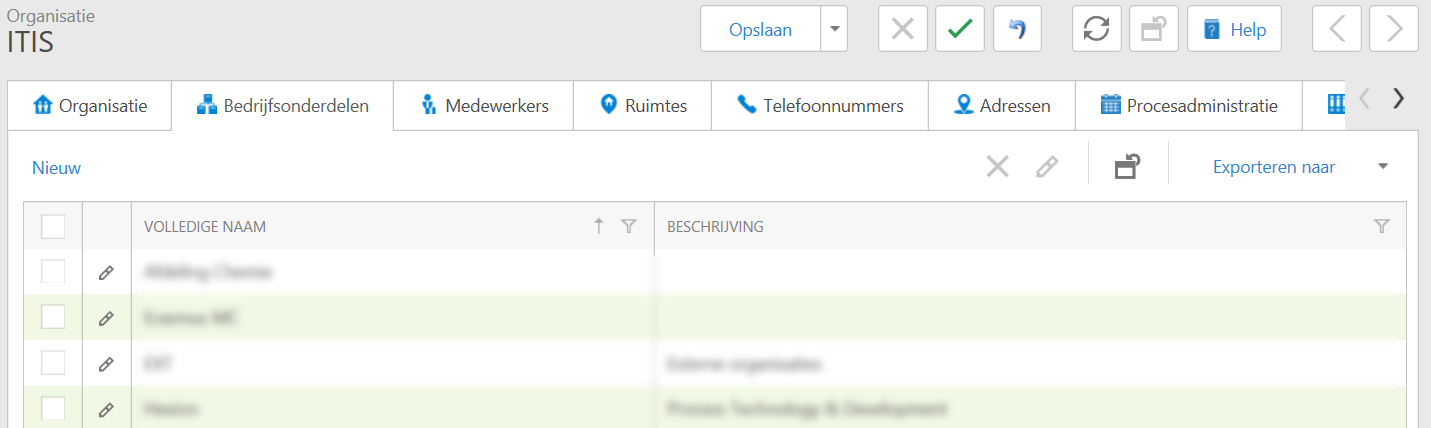
Create a business unit:
Click on the text [New]. A window opens.