
SOFOS 360
Informationportal
Most of the SOFOS 360® users will work in the Information Portal. Here they can only consult the available information; changing and deleting data is not possible.
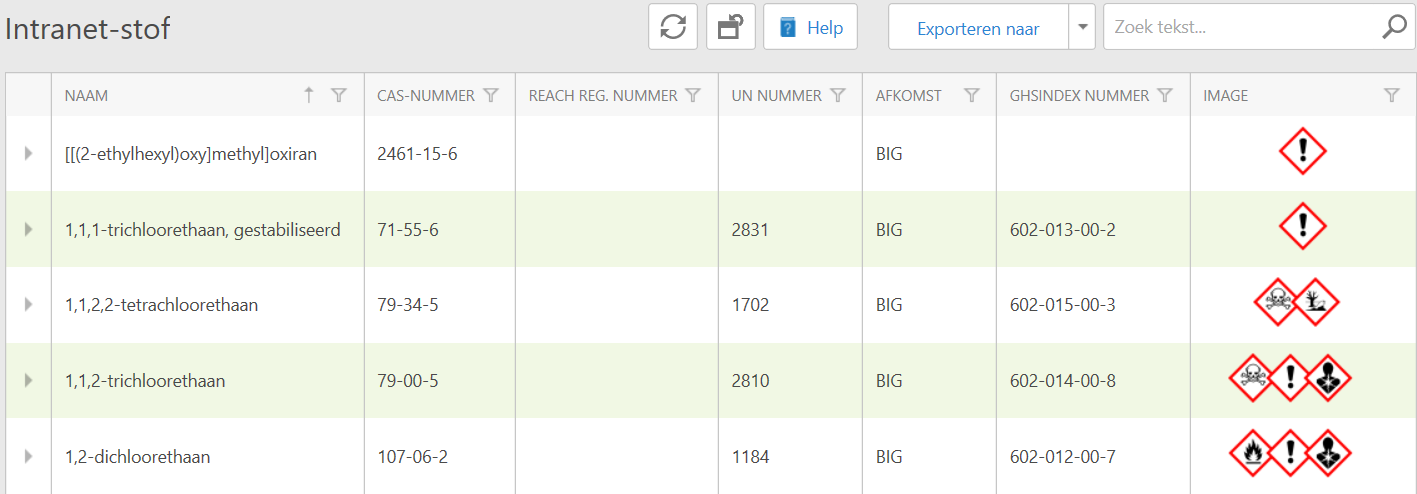
This is the home screen of the Information Portal. The information is displayed in a grid.

To see more information about a substance, click on the arrow () next to the substance in the left column.
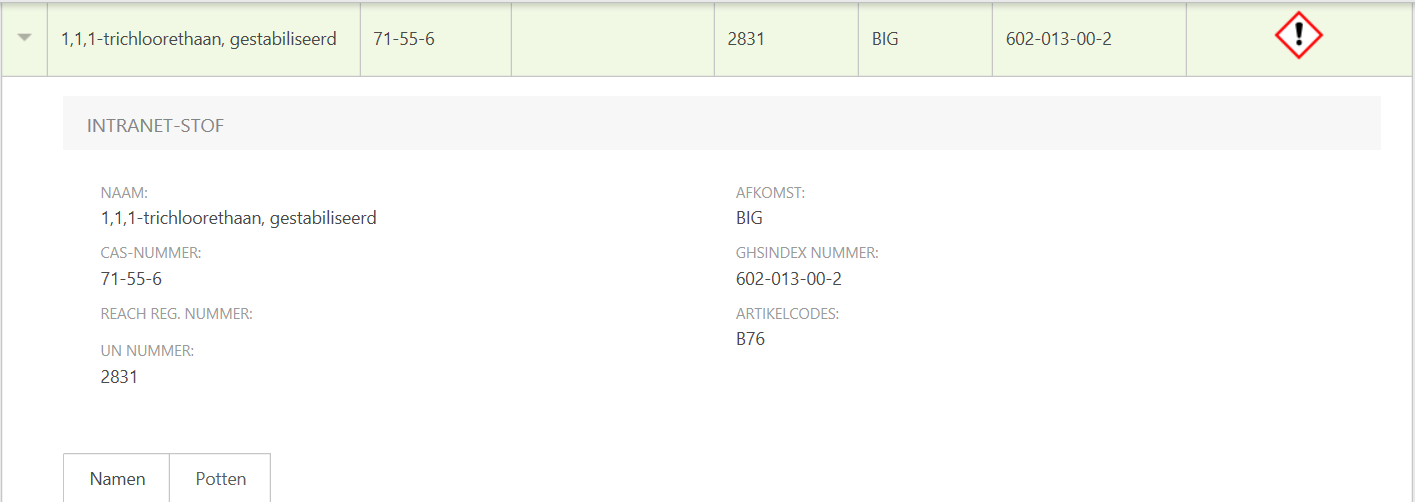
You can see that the arrow next to the substance name has changed direction (). This means that you are now looking in the detail view. In addition to the information you already saw in the grid, you will also see the article code. Below that you will see two tabs: names and pots.
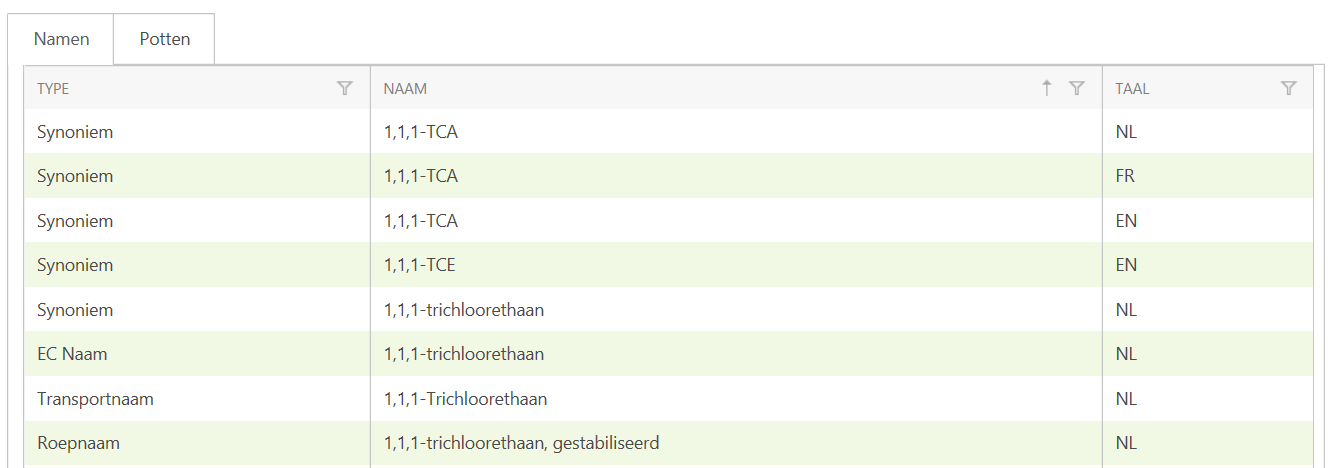
In the Names tab you can see all the names and synonyms in the different languages.
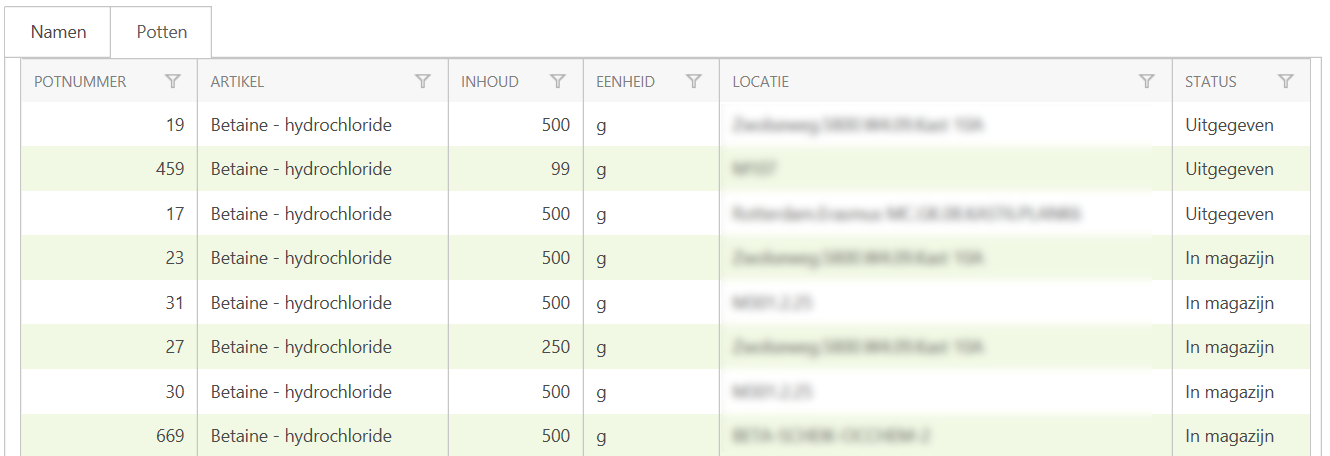
In the Pots tab you can see the pots present, the quantity per pot and the content, location and status.

If a substance has a large circulation (is ordered a lot and spent a lot), the list will be quite large. At the bottom of the detail view you will see a number of pages and the amount of records per page.

The Filter button next to each column heading allows you to specify values you want to filter on (what do you want / not see) and specify the sorting/group order. These values vary depending on the column you are working in.

If you see an up or down arrow next to the Filter button, you can also quickly display the sorting order.

Search with part of the text.

By typing a space between two search values, SOFOS 360® searches for both values separately. For example 'amino' and 'acid' will return all records containing these words.

By placing a search value between double quotes ("), SOFOS 360 ® searches for an exact match in the available records.
You may want to export the available information, for example as input for a report.
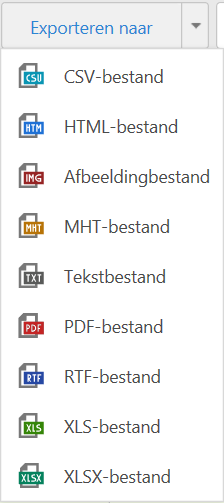
Click on the Export to button or make a choice with the arrow () on the right side. The difference: if you click the button, a *.csv file will be generated automatically (this choice is at the top). With the arrow you can choose more file formats. You confirm your choice from the list by clicking on it.


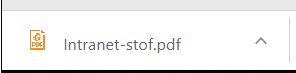 {ff3c88-d203-4f8b-8a6a-ab4bb4d71ca4} You will be asked what you want to do with the file. Depending on the browser you are using, this question will appear at the bottom centre of the screen (Microsoft Edge, Internet Explorer) or at the bottom left of the screen (Google Chrome). You can usually find these files in your own Downloads folder. (This also depends on the settings of your own workstation; if you have any questions about this, please contact your own system administrator or helpdesk)
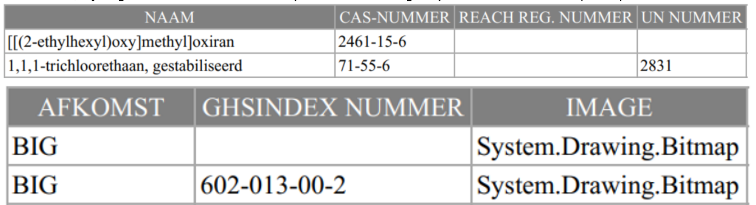
Here is an example of the columns being exported. How the columns are displayed depends on the file format you are exporting to. If you export to a *.pdf file, the columns will be divided over two pages.

If you export to, for example, *.csv or to an Excel file, you will see all the columns at a glance. You can now further process the data.